Azure Virtual Desktop for Small Business Teams
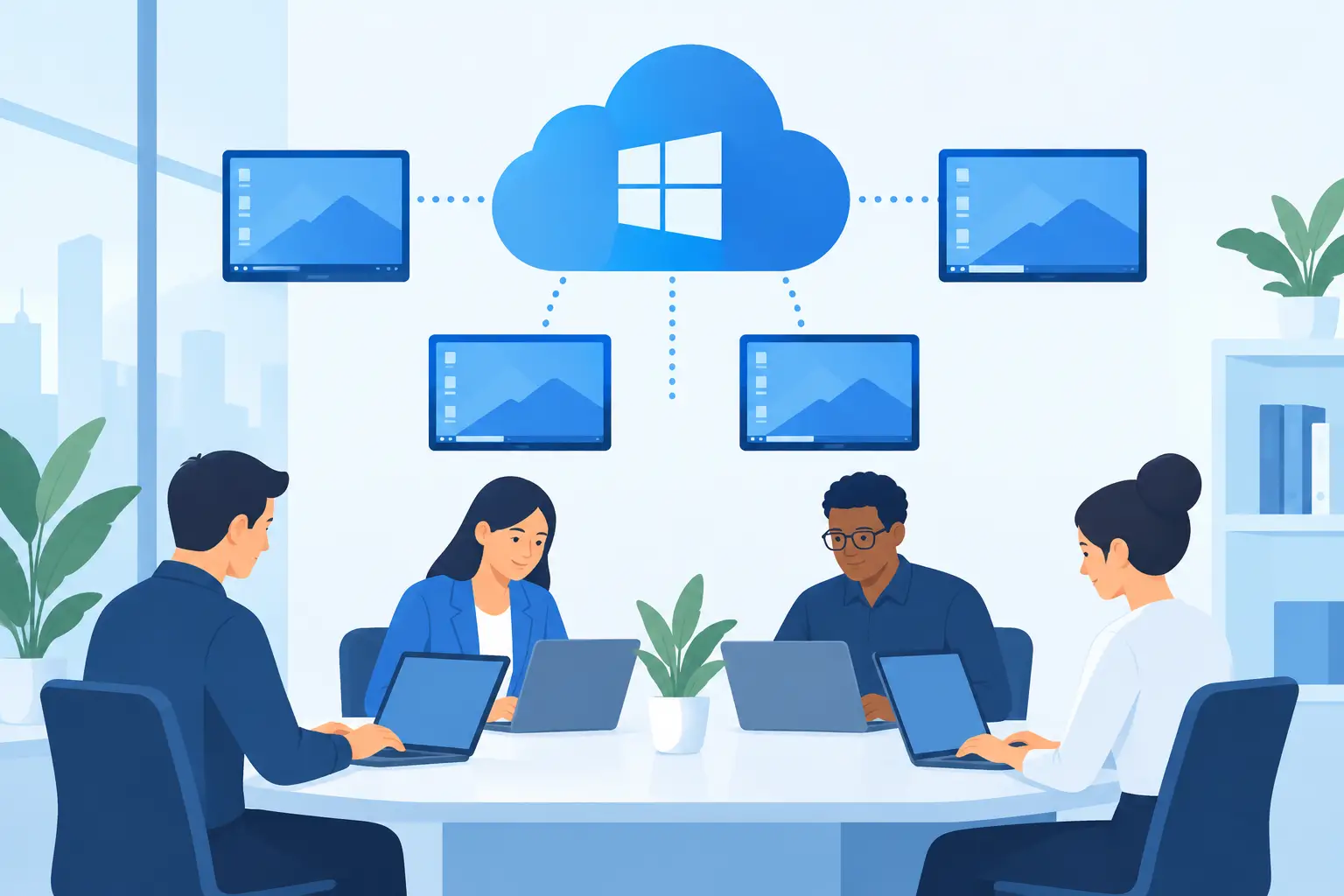
A new laptop should not be the only thing standing between an employee and productive work. When staff need secure access to accounting software, line-of-business applications, shared files, or a consistent Windows environment from home, the office, or a client site, Azure virtual desktop can be a practical alternative to maintaining individual PCs for every scenario. The value is not simply remote access. It is giving the business more control over where data lives, how applications are managed, and what happens when a device is lost, replaced, or used outside the office.
For small and mid-sized businesses, the right question is not whether every workload belongs in a virtual desktop. It is whether specific employees, applications, and security requirements would be better served by a centrally managed Windows environment.
What Is Azure Virtual Desktop?
Azure Virtual Desktop is Microsoft's cloud-based desktop and application virtualization service. It allows a business to deliver full Windows desktops or individual applications from Microsoft Azure to authorized users. Employees can connect from supported Windows, Mac, mobile, or web-based devices while their work session runs in Azure rather than on the device in front of them.
A user may see a familiar Windows desktop with Microsoft 365 apps, business software, mapped resources, and company settings. Behind the scenes, the organization can centrally manage the desktop image, user access, security policies, updates, and supporting Azure infrastructure.
One major advantage for eligible Microsoft 365 licensing is access to Windows 11 Enterprise multi-session. Unlike a traditional one-user-per-virtual-machine design, multiple users can share the capacity of a properly sized virtual machine while maintaining separate sessions. That can make virtual desktops more efficient for groups with similar work patterns, though it does not remove the need for careful capacity planning.
When Azure Virtual Desktop Makes Business Sense
Azure Virtual Desktop tends to fit organizations with a clear operational or security reason for centralized computing. A professional services firm may need employees to access sensitive client data without storing it locally. A growing company may need to onboard temporary or remote staff quickly. Another business may rely on a legacy desktop application that performs poorly over a standard VPN connection.
It can also be useful when a business has a mixed-device environment. Rather than trying to make every personal or contractor-owned device conform to the same configuration, the company can provide a controlled work environment that is accessed through the device. The endpoint still requires security controls, but the business can limit the amount of company data that resides there.
Azure Virtual Desktop is especially worth assessing when these concerns overlap:
- Employees need secure access to Windows applications from multiple locations.
- Sensitive information should remain within a managed business environment.
- IT staff spend too much time repairing inconsistent PCs or configuring individual applications.
- The company needs a more repeatable onboarding and offboarding process.
- An application requires access to cloud or on-premises resources that are difficult to support over VPN.
This does not mean every employee needs a cloud desktop. A salesperson who works primarily in browser-based Microsoft 365 apps may be well served by a managed laptop with Microsoft Intune and Microsoft Defender. A staff member using specialized desktop software, large internal files, or sensitive financial data may benefit far more from a virtual desktop. The best design usually combines approaches rather than forcing one model across the entire business.
Azure Virtual Desktop Security Benefits and Limits
The security benefit starts with centralization. Data can remain in Azure or in connected business systems instead of being copied to a local computer. Access can be tied to Microsoft Entra ID, multi-factor authentication, Conditional Access policies, and role-based permissions. When an employee leaves, disabling the account can remove access to the environment immediately.
Central management also improves consistency. A well-designed environment uses standardized desktop images, defined patching processes, endpoint protection, session controls, and documented permissions. This can reduce the risk created by unmanaged software, outdated devices, or former employees retaining access to business resources.
However, a virtual desktop is not automatically secure because it is hosted in Azure. Weak identities, excessive permissions, poorly configured network access, missing backups, and unsupported applications can still create exposure. Businesses must also decide whether users can copy files locally, print documents, use USB devices, or access clipboard content between the virtual session and their device. Those choices involve real trade-offs between security and employee convenience.
A secure implementation should include identity protection, multi-factor authentication, Conditional Access, endpoint monitoring, backup planning, and a clear response process for suspicious activity. If on-premises servers or applications are involved, the network connection between Azure and the office also needs to be designed and protected properly.
The Cost Question: Licensing Is Only One Part
Azure Virtual Desktop costs are often misunderstood because the platform is not priced like a single all-inclusive software subscription. Depending on the design and existing Microsoft licensing, an organization may need to account for eligible user licenses, Azure virtual machine compute, storage, network usage, backup, security tooling, and ongoing management.
The most variable expense is typically compute. Virtual machines can be scheduled to start and stop based on business hours and user demand, which helps avoid paying for full capacity around the clock. Autoscaling can be useful, but it must be configured around real usage patterns. A team with predictable office-hour activity has a different cost profile than a support team that operates evenings and weekends.
Storage and user profiles also matter. Microsoft FSLogix is commonly used to provide a consistent user profile experience across pooled virtual desktops. If profile storage is undersized, poorly connected, or not backed up, employees may experience slow sign-ins or missing settings. These are design details that directly affect whether the platform feels dependable.
Before committing, a business should estimate the number of concurrent users, required applications, expected peak hours, storage needs, graphics requirements, and any dependencies on local servers. The lowest monthly estimate is not always the right target. An environment that is too small creates performance complaints, while one that is oversized wastes budget.
Design Decisions That Affect Employee Experience
A successful Azure Virtual Desktop deployment starts with the application inventory, not the virtual machines. Each critical application should be reviewed for compatibility, licensing terms, data location, printing needs, and performance requirements. Some older applications work well in a virtual desktop environment. Others require adjustments, vendor input, or a different delivery method.
Printing is a common example. Basic document printing may be straightforward, but specialized label printers, scanners, accounting peripherals, and production equipment can require additional testing. Video conferencing, graphics-heavy design work, and very large files may also need specific Azure virtual machine sizes or a different approach entirely.
User experience is shaped by internet quality as well. Azure Virtual Desktop can perform well on ordinary business connections, but employees need stable connectivity. A weak home Wi-Fi signal or congested office connection can make a well-designed cloud desktop feel slow. Testing with actual user roles is more valuable than assuming one configuration will suit everyone.
For many businesses, the most practical rollout is a pilot. Start with a small group that represents typical users, test the applications and peripherals they rely on, measure performance, and document support procedures. Once the experience is proven, additional users can be moved in controlled phases.
A Practical Deployment Approach
The first step is a discovery assessment. This identifies users, applications, data sources, licensing, security requirements, network dependencies, and business continuity objectives. It should also determine which staff members need a full virtual desktop and which only need secure access to specific applications.
Next comes the architecture. This includes the Azure region, host pool design, identity model, network connectivity, profile storage, image management, backup approach, and security controls. Businesses with existing Microsoft 365 environments often benefit from aligning Azure Virtual Desktop with Intune, Defender, Entra ID, and Conditional Access rather than managing each service separately.
The implementation phase should include application testing, pilot-user feedback, documented access procedures, monitoring, and a support plan. A virtual desktop platform is not a set-it-and-forget-it project. Windows updates, application changes, user growth, security alerts, and cost optimization all require ongoing attention.
Deep Shah IT Consulting helps small businesses evaluate Azure architecture in practical terms: what should move, what should stay on managed endpoints or local infrastructure, and what level of support will keep the environment secure and cost-conscious. The goal is not to add cloud services for their own sake. It is to create a reliable workspace that fits the way the business actually operates.
If your team is balancing remote access, aging PCs, sensitive data, or difficult-to-support business applications, an Azure Virtual Desktop assessment can replace guesswork with a clear technical and financial plan. A free discovery call is a useful first step toward deciding whether virtual desktops belong in your next IT investment.
Need help with this?
Book a free 20-minute call — I'll tell you what needs to happen, no sales pitch.