How to Improve Office Network Performance
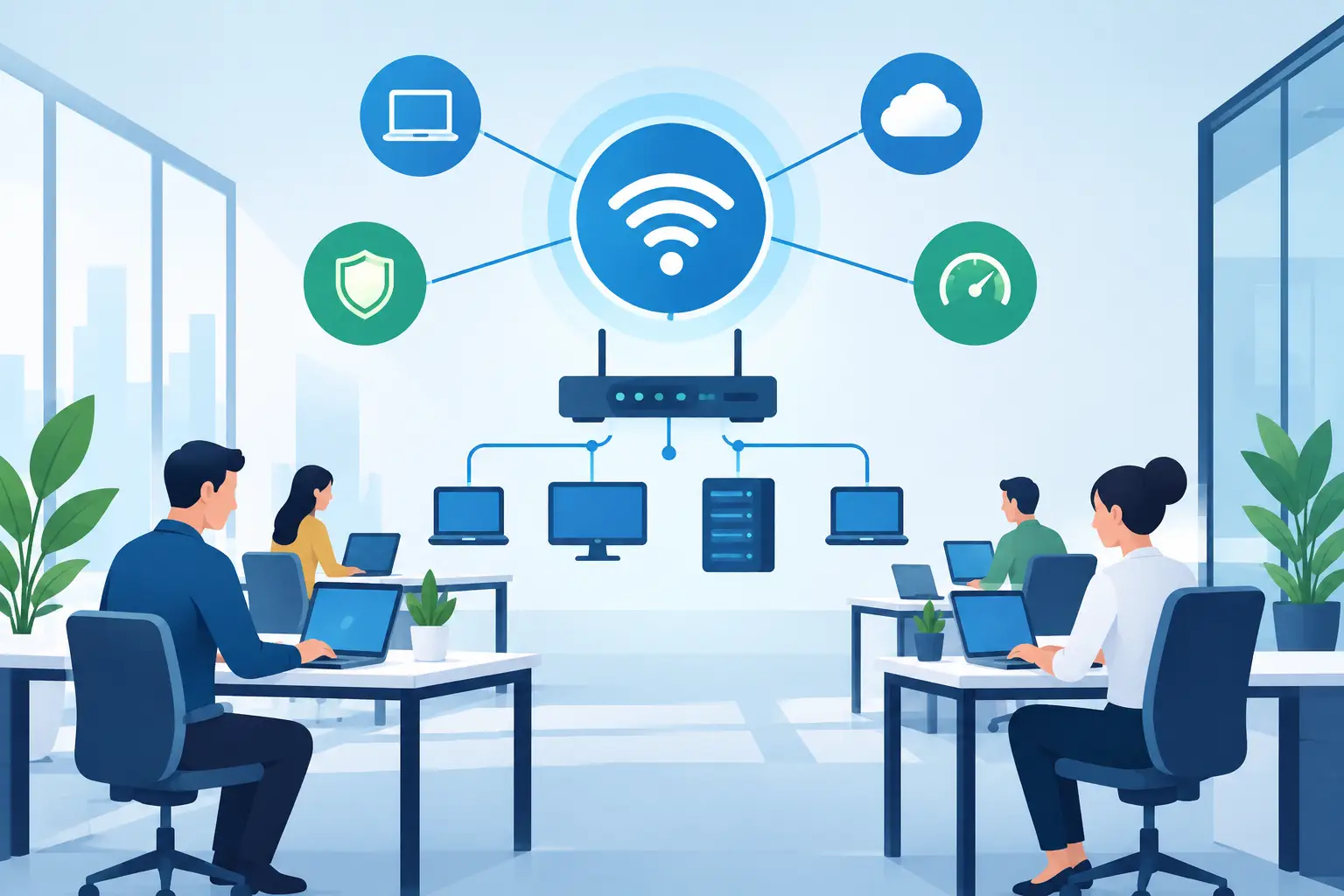
A network problem rarely announces itself as a network problem. It shows up as a Teams call that freezes during a client meeting, a cloud file that takes two minutes to open, a point-of-sale terminal dropping offline, or staff walking to the boardroom because it is the only place with usable Wi-Fi. If you are asking how to improve office network performance, start with the business disruption, not the equipment catalog.
For a 10-person professional firm in Burlington or a 40-person operation in Hamilton, the goal is not the most expensive network. It is a stable, secure connection that lets staff work without thinking about IT, protects business data, and can grow without being rebuilt every year.
Start by Finding the Actual Bottleneck
Buying a faster internet plan is often the first reaction. Sometimes it is the correct answer. Often, it is not.
A business may have a 1 Gbps internet connection but still experience slow applications because the Wi-Fi access points are poorly placed, a switch is limited to 100 Mbps, old cabling is damaged, or one unmanaged device is consuming the connection. Cloud applications such as Microsoft 365 can also feel slow when DNS, VPN settings, or a firewall are misconfigured.
I begin a network assessment by separating three issues: internet capacity, the office network, and the applications staff use. This prevents a business from spending an extra $100 or $200 per month on bandwidth that will not fix the complaint.
Ask staff where the problem occurs and when. If video calls fail only in the warehouse, that points to Wi-Fi coverage. If every device slows down after lunch, you may have congestion or a scheduled cloud backup competing for bandwidth. If only remote staff have trouble reaching a server, the issue may be the VPN or the server itself.
A simple baseline matters. Test wired and wireless speed at several locations, review firewall and switch logs, and identify every device using the network. A network no one has documented becomes expensive to troubleshoot, particularly after an office move or employee departure.
Improve Office Network Wi-Fi Before Adding More Internet
Office Wi-Fi needs planning. A consumer router placed in a reception area may be acceptable for a three-person office with light use. It is not a sensible long-term choice for a 20-person firm with laptops, mobile devices, printers, meeting-room displays, and guest access.
Place access points where people work
Wi-Fi signals weaken through concrete, metal framing, glass, storage racks, and even dense rows of filing cabinets. One access point at one end of an 8,000-square-foot office will not deliver reliable service at the other end, regardless of the internet plan.
The answer is usually not to install several inexpensive wireless extenders. Extenders can reduce capacity and add another point of failure. Proper wired access points, placed after a basic site survey, give better results. In a typical office, each access point should be connected by Ethernet cable rather than relying on a wireless mesh link wherever cabling is practical.
For a small office, two or three business-grade access points may be enough. A larger space, multi-floor office, or warehouse needs a coverage plan based on floor layout, construction materials, and the number of simultaneous users. Equipment and installation for a modest Wi-Fi refresh can range from roughly $2,000 to $5,000 before tax, depending heavily on whether new cabling is required. It is worth getting the design right before purchasing hardware.
Separate staff, guest, and business devices
Guest Wi-Fi should not sit on the same network as workstations, servers, cameras, printers, or point-of-sale equipment. Neither should smart TVs, door controllers, and other internet-connected devices that receive less security attention than laptops.
Network segmentation sounds technical, but the business reason is straightforward: a compromised guest phone or vulnerable camera should not have a direct path to financial files or Microsoft 365-connected computers. Separate networks also make troubleshooting easier. If guests are streaming video, they should not interfere with a Zoom meeting or cloud backup.
For most businesses with 10 to 100 staff, I recommend at least a staff network, a guest network, and a separate network for infrastructure or smart devices. The exact design depends on what the company handles. A law office, accounting firm, or healthcare-adjacent business may need tighter controls than a small retail office.
Replace the Weak Links in the Wired Network
Reliable Wi-Fi still depends on a reliable wired network behind it. An aging switch, low-quality patch cable, or outdated wall jack can limit an otherwise modern setup.
Check whether switches and network cards support gigabit speeds. It is common to find an older 100 Mbps switch still in use for printers, access points, or a key workstation. That speed may be adequate for a basic printer, but it becomes a bottleneck when it feeds several users or a wireless access point.
Cabling deserves attention during office renovations and moves. Cat5e is generally adequate for gigabit networking over normal office distances. There is no need to replace every working Cat5e run with Cat6 simply because Cat6 is newer. However, if you are opening walls, installing new runs, or preparing for higher-power access points and future expansion, Cat6 is a sensible choice.
Label cables, switches, ports, and wall jacks. This is not glamorous work, but it saves real money later. When internet drops at 4:30 p.m. on a Friday, a labeled network can often be diagnosed quickly. An unlabeled closet full of tangled cables turns a straightforward issue into exploratory labor.
Treat the Firewall as a Security Decision, Not a Box
The device connecting your office to the internet is also part of your cybersecurity posture. A firewall should do more than provide Wi-Fi and hand out internet access. It should block known malicious activity, support secure remote access, separate network segments, and provide visibility when something unusual happens.
A low-cost router from a retail store can be appropriate for a home office with two people. It is usually a poor fit for a business that stores client information, has remote staff, uses Microsoft 365, or must complete cyber-insurance questionnaires.
That does not mean every small business needs an enterprise firewall with a complex annual license. The right choice depends on staff count, internet speed, remote-access requirements, and security risk. A 12-person design firm with cloud files and no server has different needs than a 60-person manufacturer with production equipment and a second location.
What should not be optional is regular firmware updating, strong administrator passwords, multi-factor authentication for remote access, and a documented backup of the firewall configuration. If a device fails, that configuration can significantly reduce downtime.
Plan for Video Calls, Cloud Files, and Remote Work
Older networks were built around a server in a closet and office-bound staff. Many businesses now rely on Microsoft 365, SharePoint, Teams, cloud accounting, web-based line-of-business applications, and remote access. That changes where traffic goes and what users notice.
For Teams calls, consistency matters more than headline download speed. Upload capacity, Wi-Fi quality, latency, and congestion all affect call quality. If a business has 30 people on video calls, a symmetrical fiber connection is often a better investment than a cable plan with limited upload speeds.
Quality of service settings can prioritize voice and video traffic, but they are not magic. They cannot repair poor Wi-Fi coverage or an overloaded connection. Use them after the physical network and internet capacity are in reasonable shape.
Remote work also deserves a deliberate decision. If files have moved to SharePoint or OneDrive, many employees may no longer need a full VPN connection to access day-to-day documents. Reducing unnecessary VPN use can improve performance and simplify support. On the other hand, staff who need access to a legacy server or specialized application may still require a properly configured VPN or remote desktop solution.
Build a Network That Can Be Supported
The best network is one someone can understand and maintain. Keep a current diagram, equipment list, warranty details, internet provider information, administrator access records, and a short description of how each network segment is used.
Monitoring is worthwhile once a business depends on the network for revenue or operations. It can alert your IT provider when an access point, switch, backup internet connection, or firewall goes offline. For a business without internal IT, that turns a surprise outage into a problem that can be addressed before staff arrive Monday morning.
I also recommend deciding whether a backup internet connection is justified. For a business that can work from mobile hotspots for a few hours, it may not be worth the monthly cost. For a clinic, dispatch operation, retail location, or office where every transaction depends on connectivity, a secondary connection or cellular failover can be inexpensive insurance against a provider outage.
At Deep Shah IT Consulting, I approach network improvements as part of the wider picture: Microsoft 365 access, cybersecurity, backup, remote work, and the way your team actually operates. A written scope should explain what is being replaced, why it matters, and what ongoing support looks like before work begins.
A better office network does not need to be complicated. It needs to remove friction from the work your people already do, give you a clear response when something fails, and avoid forcing an emergency replacement when the business can least afford one. A short assessment now is usually far less disruptive than diagnosing the network during your next outage.
Need help with this?
Book a free 20-minute call — I'll tell you what needs to happen, no sales pitch.