How to Secure Remote Workstations for Small Teams
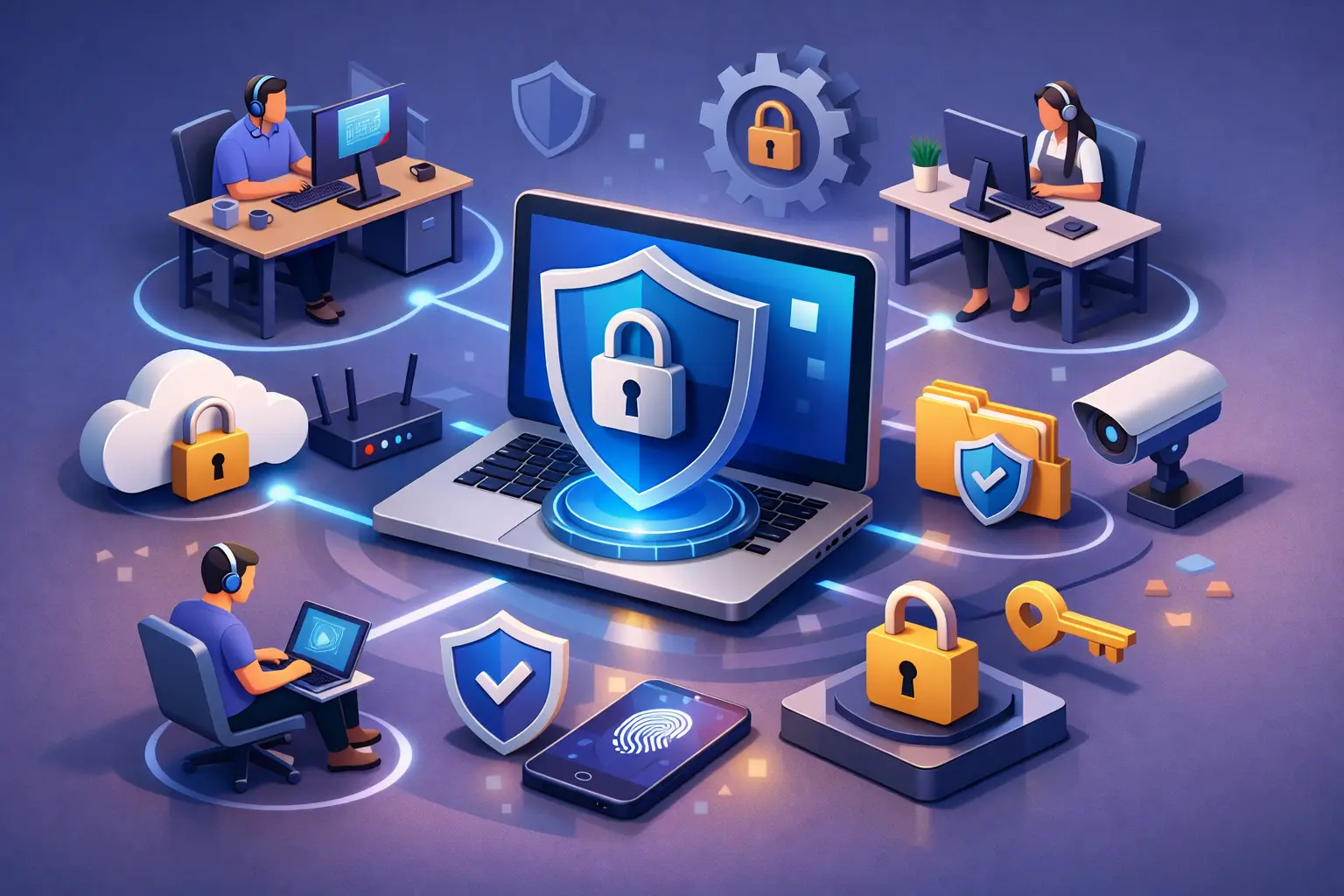
A remote laptop can hold the same customer records, financial data, email access, and business applications as a computer inside your office. The difference is that it may be used on home Wi-Fi, carried through airports, or shared with family members nearby. Knowing how to secure remote workstations means treating every endpoint as part of your business network, not as an exception to your security standards.
For small businesses, the goal is not to add layers of technology for their own sake. It is to establish practical controls that protect data, reduce support issues, and let employees work productively from wherever their job requires.
How to Secure Remote Workstations Without Slowing Work
The most effective approach combines identity protection, managed devices, secure access, and clear employee practices. A single antivirus tool or password policy cannot carry the full burden. Most real incidents start with a stolen password, an unpatched device, a deceptive email, or a lost laptop - often followed by gaps in monitoring or recovery.
Start by deciding which devices are approved for work. Company-owned workstations are easier to secure because IT can apply the same configuration, updates, encryption, and security policies across every device. Bring-your-own-device arrangements can work for some roles, but they require tighter boundaries. Employees should access business data through managed applications and should not save sensitive files to personal local folders.
Before choosing more security tools, create a current device inventory. It should identify who has each workstation, its operating system version, encryption status, installed security software, and whether it can be remotely managed. If a device is not on the inventory, it should not have unrestricted access to company systems.
Make identity the first line of defense
Remote employees connect to Microsoft 365, cloud applications, accounting platforms, customer systems, and file storage using their identities. That makes identity security more valuable than relying only on the network perimeter.
Require multi-factor authentication for every user, especially administrators and anyone with access to financial information or customer records. An authenticator app or security key is generally safer than text-message codes, which can be vulnerable to phone-number takeover attacks. MFA will not stop every threat, but it prevents many account compromises caused by reused or stolen passwords.
Use conditional access policies where your Microsoft licensing supports them. These policies can require MFA, block older authentication methods, restrict sign-ins from unusual locations, or deny access from devices that do not meet your security requirements. The right settings depend on the business. A team that travels frequently may need a different policy than a professional services firm whose employees work primarily from known locations.
Administrative accounts deserve separate treatment. No employee should use an account with administrator rights for routine email, web browsing, and document work. Create separate privileged accounts for administrative tasks, protect them with stronger authentication, and review who has those rights regularly.
Standardize Device Management and Security
A workstation is only as secure as its current configuration. Manual setup may be workable for three computers, but it becomes inconsistent as a company grows, hires remotely, or replaces aging hardware. Central device management gives the business a repeatable way to set standards and verify that they remain in place.
Microsoft Intune is often a practical fit for small businesses already using Microsoft 365. It can help enroll Windows devices, apply security baselines, enforce screen locks, deploy applications, and check whether devices meet compliance requirements. When connected to conditional access, it can prevent an unmanaged or noncompliant device from reaching company resources.
At a minimum, establish policies for the following:
- Full-disk encryption, such as BitLocker on supported Windows devices
- Automatic operating system, browser, and application updates
- Endpoint detection and response protection with centralized alerts
- A password-protected screen lock that activates after a short period of inactivity
- Restrictions on local administrator rights and unapproved software installation
Encryption is especially important for laptops. If a device is lost or stolen, encryption helps ensure that someone who removes the drive or attempts to start the computer cannot simply read its contents. Store recovery keys in a controlled business system, not in an employee's personal email account or a spreadsheet accessible to everyone.
Endpoint detection and response, often called EDR, provides more visibility than traditional antivirus alone. It can identify suspicious behavior, isolate a compromised device, and provide investigation details when an incident occurs. For a small business without a dedicated internal security team, managed monitoring can make the difference between noticing an alert quickly and discovering a problem weeks later.
Patch more than Windows
Operating system updates matter, but attackers also target browsers, PDF readers, remote access tools, conferencing software, and browser extensions. Create a patching process that covers all commonly used applications. Critical security updates should be deployed promptly, while regular updates can follow a defined maintenance schedule.
There is a trade-off: automatic updates can occasionally interrupt work or create an application compatibility issue. That is why a managed approach is useful. Test important software on a small group of devices where practical, schedule restarts outside peak hours, and keep a clear process for handling exceptions. Delaying every update because one application might be affected creates more risk than it avoids.
Secure Connections and Business Data
Home Wi-Fi is not automatically unsafe, but it is outside your direct control. Employees should use a modern router, change default router passwords, enable WPA2 or WPA3 encryption, and keep router firmware current. Public Wi-Fi requires greater caution. Employees should avoid accessing sensitive systems on open networks whenever possible, and use an approved VPN or secure access solution when business needs make public connectivity unavoidable.
A VPN can still be useful, particularly when employees must reach internal systems. However, sending all cloud traffic through a VPN is not always the best design. Cloud applications such as Microsoft 365 are often better protected through strong identity controls, compliant devices, and secure application settings. The appropriate architecture depends on where your data and applications actually reside.
Protect the data itself with sensible sharing and retention controls. Use approved cloud storage locations such as SharePoint or OneDrive for Business rather than personal file-sharing accounts. Configure permissions based on job roles, limit external sharing where it is unnecessary, and use sensitivity labels or data loss prevention policies for confidential documents when the business handles sensitive information.
Backups remain essential. Cloud collaboration platforms offer strong availability, but availability is not the same as a complete backup strategy. Accidental deletion, malicious changes, and retention mistakes can still cause problems. Verify what is backed up, how long it is retained, and how quickly essential files can be restored.
Train for the Situations Employees Actually Face
Remote security is partly a technology problem and partly a decision-making problem. Employees need short, relevant guidance that helps them recognize common risks without turning every workday into a security exercise.
Focus training on realistic scenarios: a fake Microsoft 365 sign-in page, an invoice request with changed banking details, a message that appears to come from an executive, or a pop-up asking the user to call a support number. Explain what employees should do when something feels wrong: stop, do not enter credentials, report it, and use a trusted contact method to verify the request.
Clear policies reduce uncertainty. Employees should know whether they may use personal USB drives, print sensitive files at home, work from public spaces, or let family members use a company laptop. They should also know that a lost device or suspected phishing attempt must be reported immediately. Fast reporting is a positive action, not something to punish.
Prepare for a Lost Device or Security Incident
Even well-managed workstations can be lost, damaged, or compromised. The right response plan limits the business impact. Document who can disable a user account, revoke active sessions, remotely lock or wipe a device, contact the employee, and assess whether data was exposed.
Test this process before an actual incident. Select a retired device or use a controlled exercise to confirm that remote wipe works, recovery keys are available, security alerts reach the right person, and an employee can receive a replacement workstation without extended downtime. A plan that exists only in a shared document is not yet an operational plan.
For many small businesses, managed IT and cybersecurity support provide the practical oversight needed to keep these controls current. A discovery-led review can identify unmanaged devices, weak Microsoft 365 settings, unsupported operating systems, and unnecessary administrative access before they become expensive problems.
Remote work should not force a choice between flexibility and security. When every workstation is managed, every user is properly verified, and every employee knows how to respond to risk, your team can work confidently without leaving the business exposed.
Need help with this?
Book a free 20-minute call — I'll tell you what needs to happen, no sales pitch.