Microsoft 365 Migration Guide for Small Business
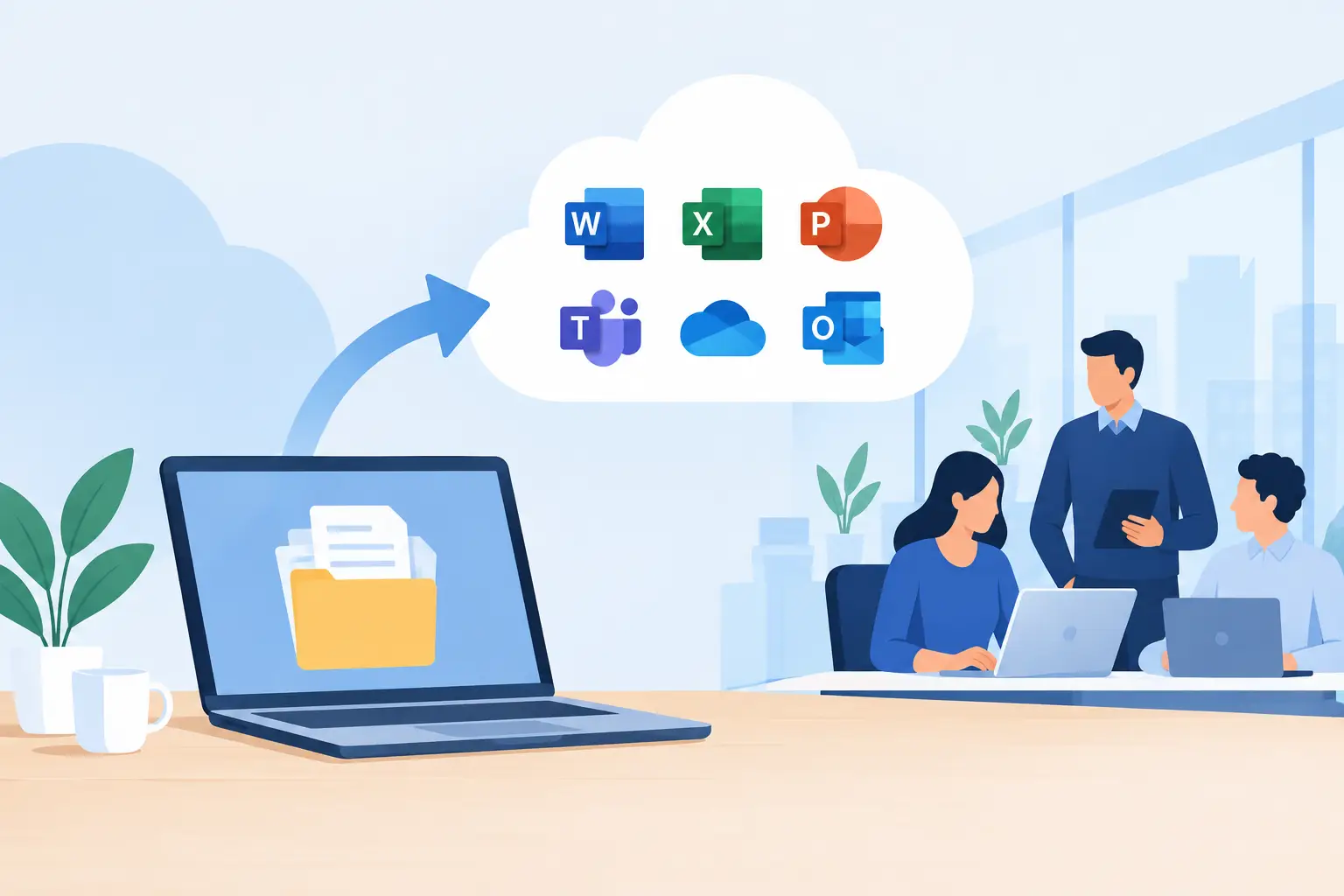
A Microsoft 365 migration guide should start with a business question, not a technical one: what needs to keep working on Monday morning? For most small businesses, the answer includes email, shared files, calendars, customer communications, accounting access, and the ability for employees to work securely from any location. A rushed move can disrupt all of them. A well-planned move gives your business a more secure, manageable foundation without creating unnecessary downtime.
Microsoft 365 migrations are often described as email projects. Email is only one part of the work. The real project involves identities, devices, data ownership, security controls, licensing, and employee habits. The right approach depends on where you are starting, how much data you have, and how much change your team can reasonably absorb at once.
Start With a Clear Migration Scope
Before choosing a migration tool or setting a cutover date, document what is currently in use. Many businesses have more systems tied to their email domain than they realize. Password reset emails, website forms, line-of-business applications, scanners, phones, shared mailboxes, and third-party software may all rely on existing email accounts or DNS records.
A useful discovery process identifies users, mailboxes, aliases, shared addresses, distribution groups, calendars, contacts, OneDrive and shared-file requirements, and existing devices. It should also identify data that does not belong in Microsoft 365, such as legacy application archives or large operational files that may be better suited to Azure storage or a purpose-built cloud platform.
This is also the time to decide what a successful outcome looks like. It may be as simple as moving from a hosted email provider to Exchange Online. It may also include replacing an aging file server with SharePoint and OneDrive, enrolling laptops in Microsoft Intune, deploying Microsoft Defender, and establishing a cloud backup policy. Combining work can reduce repeat disruption, but trying to change everything at once can increase risk. For some businesses, a phased project is the better decision.
Microsoft 365 Migration Guide: Plan Before Moving Data
The strongest migrations separate planning, preparation, transfer, cutover, and post-migration support. Data can be copied quickly. Preparing the environment and people is where most of the value lies.
Build the right Microsoft 365 tenant
Your Microsoft 365 tenant is the long-term administrative home for your business. Configure it with the correct legal business details, domain ownership, administrator accounts, licensing, and recovery contacts. Avoid using a single employee's account as the only global administrator. At least two protected administrative accounts should exist, with documented recovery procedures.
Licensing deserves more attention than it usually receives. Microsoft 365 Business Basic may be appropriate for email-focused staff, while Business Premium is often a better fit for employees handling sensitive data on company-managed devices. Business Premium can support Intune device management, Conditional Access, and Defender for Business, which are meaningful security improvements for many small organizations.
The least expensive license is not always the lowest-cost decision. A lower tier can be perfectly suitable for a small team using web apps and personal devices. But if the business needs to protect laptops, enforce multifactor authentication, control data access, or support remote work securely, the security and management capabilities in the right license can prevent larger costs later.
Clean up accounts and permissions first
Migration is an opportunity to fix old problems rather than copy them into a new platform. Review inactive mailboxes, former employee access, shared passwords, unnecessary aliases, outdated distribution lists, and overly broad file permissions. Establish clear ownership for shared mailboxes and SharePoint sites.
This step matters because Microsoft 365 makes collaboration easier, but it can also make information easier to overshare if permissions are inherited without review. A finance folder, HR documents, customer contracts, and leadership files should not automatically become visible to everyone simply because a file server structure was moved without redesign.
Protect identities before the cutover
Email accounts are a common entry point for business compromise. Enable multifactor authentication before or immediately during the migration, using an authenticator app or another approved method. Avoid relying on text-message codes as the only control when stronger options are available.
Conditional Access policies can add practical safeguards, such as requiring multifactor authentication for sign-ins outside trusted conditions or blocking outdated authentication methods. The exact policy design should reflect the business. A company with field employees and personal devices needs a different balance than a professional services firm issuing managed laptops to every employee.
Move Email, Files, and Collaboration Data in the Right Order
Email migrations are usually performed in stages. First, mailboxes are prepared and historical email is copied in the background. Then, after validation, DNS records are updated so new mail is delivered to Microsoft 365. This is the cutover point, and it should be scheduled during a period when staff can access support if needed.
The migration method depends on the source system. A move from Google Workspace, an older Microsoft Exchange server, a hosted IMAP mailbox provider, or another Microsoft 365 tenant each has different capabilities and limitations. IMAP migrations, for example, generally transfer email but may not move calendars, contacts, tasks, rules, or permissions in the same way. Those details need to be confirmed early so expectations are accurate.
File migration requires equal care. OneDrive is intended for an individual's working files, while SharePoint is typically the better home for shared department and company documents. Treating SharePoint like a direct replacement for a traditional network drive can create confusion. A thoughtful structure should reflect how teams work, who owns content, and which groups need access.
For a smooth project, validate at least the following before declaring the migration complete:
- New and historical email is available in Outlook and on mobile devices.
- Shared mailboxes, calendars, aliases, and distribution groups work as expected.
- Shared files are in the correct SharePoint locations with appropriate permissions.
- Users can reset passwords and complete multifactor authentication without delay.
- Business applications, printers, scanners, and website forms can send and receive email correctly.
Prepare Employees for the Change
Technology projects often fail at the handoff, not during the technical work. Employees need concise instructions that explain what is changing, when it is changing, and what they need to do first. A detailed manual is less useful than a clear first-day checklist: sign in, set up multifactor authentication, open Outlook, access shared files, and know where to ask for help.
Communication should be specific about short-term changes. Users may need to re-enter passwords in Outlook, reconnect mobile mail, or update a saved network location. Let them know whether old email will be available immediately, whether they should avoid modifying files during a final synchronization window, and how urgent issues will be handled.
This is also a good time to establish basic collaboration practices. Explain when to use Teams chat versus email, where shared documents belong, and how external sharing should be handled. Without guidance, employees may continue using personal file-sharing tools or duplicate data across desktops, email attachments, and cloud folders.
Do Not Treat Migration as the Finish Line
A successful cutover proves that the service works. It does not prove that the environment is secure, documented, and ready to support the business over time. After the migration, review sign-in logs, unresolved Outlook or mobile-device issues, mail flow, storage use, backup status, and user access. Confirm that offboarded employees no longer have access and that administrative roles remain limited.
Microsoft 365 also needs ongoing administration. Licenses change as employees join or leave. Security recommendations evolve. New phishing techniques appear. Teams and SharePoint sites can become difficult to manage if ownership is unclear. For a small business without an internal IT department, recurring managed IT support can provide the consistency needed to keep the environment organized and protected.
Deep Shah IT Consulting helps businesses plan and execute Microsoft 365 migrations with licensing guidance, security configuration, data migration, documentation, and direct technical support. The goal is not simply to move mailboxes. It is to give the business a cloud environment that is easier to work in and easier to defend.
If your business is considering a move, begin with an honest inventory of users, data, devices, and business-critical systems. That early clarity turns a stressful email change into a practical step toward better security, dependable collaboration, and a platform ready for what your team needs next.
Need help with this?
Book a free 20-minute call — I'll tell you what needs to happen, no sales pitch.