Can Microsoft 365 Prevent Ransomware Attacks?
Can Microsoft 365 Prevent Ransomware?
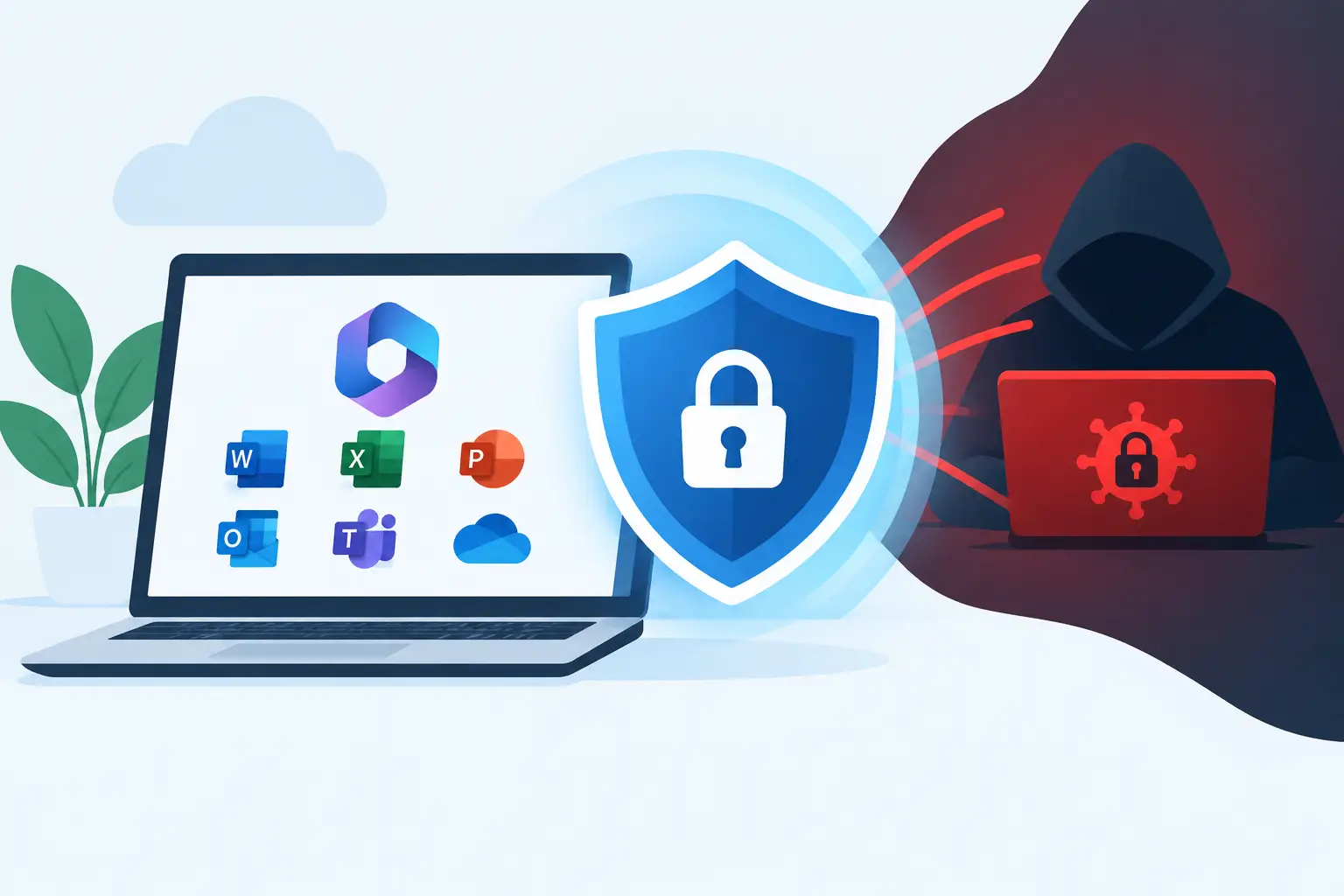
A ransomware incident rarely starts with someone clicking a file named “ransomware.” It often starts with a convincing invoice, a stolen password, an unpatched laptop, or an employee approving a fraudulent sign-in prompt during a busy day. That is why the honest answer to “can Microsoft 365 prevent ransomware” is: it can significantly reduce the likelihood and impact of an attack, but it cannot provide a guarantee by itself.
For small businesses, Microsoft 365 can be a strong security foundation when the right licenses, policies, endpoint protections, and recovery processes are in place. Left at default settings, however, it is primarily a productivity platform with useful security features, not a complete ransomware strategy.
What Microsoft 365 Can Do Against Ransomware
Microsoft 365 protects several of the most common paths attackers use to gain access. The value comes from using its tools together, rather than assuming email filtering or cloud storage alone will solve the problem.
Block malicious email before it reaches employees
Phishing is still one of the most effective ways to deliver malware or steal credentials. Microsoft Defender for Office 365 can inspect inbound email for suspicious attachments, harmful links, impersonation attempts, and known malware. Safe Attachments can detonate attachments in a controlled environment before delivery, while Safe Links can check a destination when a user clicks a link.
These controls matter because attackers regularly use legitimate-looking Microsoft, banking, shipping, or vendor messages. They also adapt quickly. A well-configured email security policy reduces the volume of dangerous messages, but employees still need to know how to recognize unusual requests, especially requests involving payments, passwords, or multifactor authentication prompts.
Reduce the damage from stolen passwords
Ransomware groups increasingly prefer to log in as a legitimate user rather than force their way through a firewall. Once they have access, they may search SharePoint, OneDrive, email, and connected applications before encrypting systems or threatening to expose data.
Multifactor authentication is the first essential control. It should be enforced for every account, particularly administrators. Microsoft Entra ID Conditional Access, available with eligible Microsoft 365 plans, adds more context: it can require stronger authentication, block risky sign-ins, limit access from unmanaged devices, and restrict legacy sign-in methods that bypass modern security controls.
Not all multifactor authentication is equal. Push notifications can be vulnerable to prompt fatigue when users approve requests without checking them. Number matching, authenticator apps, security keys, and clear employee guidance offer better resistance to this tactic.
Protect business laptops and desktops
Ransomware usually becomes a business crisis when it reaches an endpoint: a laptop, desktop, server, or shared workstation. Microsoft 365 Business Premium includes Microsoft Defender for Business, which provides endpoint protection, detection, and response capabilities for small and midsized organizations.
A properly deployed Defender environment can identify suspicious encryption activity, malicious scripts, credential theft attempts, and unusual behavior across managed devices. It can isolate a compromised device from the network so an investigation can begin before the threat spreads further.
Endpoint protection works best when paired with device management. Microsoft Intune can help enforce disk encryption, operating system updates, application controls, screen locks, and security baselines. This is especially useful for organizations with remote staff, personal devices, or laptops that rarely connect to an office network.
Limit access to the data an attacker can reach
If every employee has broad access to shared folders, a compromised account can affect a large portion of the business. Microsoft 365 supports a more disciplined approach through role-based access, separate administrator accounts, controlled sharing, and permissions based on job responsibilities.
This takes planning. Restricting access too aggressively can frustrate employees and slow work down. The goal is not to make every folder difficult to use. It is to ensure that a compromised sales account cannot access finance records, that former employees lose access promptly, and that administrative privileges are reserved for people who genuinely need them.
Help recover cloud files after an attack
OneDrive and SharePoint offer file version history and recovery features that can help restore files changed or encrypted by ransomware. This is valuable when an infected device syncs encrypted copies into cloud storage. Email retention and recovery options can also assist after mailbox compromise or destructive activity.
These features are helpful, but they should not be mistaken for a complete backup strategy. Version history may be limited by retention settings, deletion timelines, attacker activity, and the scope of the incident. A determined attacker who gains administrative access may attempt to alter configurations, remove backups, or destroy recovery points.
Where Microsoft 365 Alone Falls Short
Microsoft 365 is a major part of a modern security program, but ransomware protection has gaps outside the platform. On-premises servers, line-of-business applications, network devices, and unmanaged computers require separate attention. So do third-party cloud applications where critical business information may be stored.
The biggest gap is often recovery. A business needs an independent backup of Microsoft 365 data and critical systems, with protected retention and a recovery process that has been tested. A backup that exists but has never been restored is an assumption, not a recovery plan.
Cybercriminals also target backup systems because they understand their value. For that reason, organizations should consider backup designs that separate backup administration from daily Microsoft 365 accounts and provide immutable or otherwise protected recovery copies. The right design depends on how quickly the organization needs to resume work and how much data loss it can tolerate.
Microsoft 365 cannot correct weak operational habits on its own. Shared accounts, stale administrator access, unsupported software, poor patching, and no incident response plan can undermine even a well-licensed environment.
A Practical Microsoft 365 Ransomware Checklist
For most small businesses, the starting point is not purchasing every available security add-on. It is closing the most serious gaps in a sensible order. Begin by confirming that multifactor authentication is enforced for all users and that administrator accounts are separate from daily email accounts. Then review forwarding rules, external sharing settings, inactive accounts, and the number of people with global administrator rights.
Next, make sure endpoint protection is deployed across every supported company device, not merely installed on a few office computers. Devices should be enrolled in management, encrypted, patched, and visible to the organization. A security alert has limited value if nobody knows which laptop triggered it or who is responsible for acting on it.
Email protections should be tuned for the business rather than accepted at their default level. That includes impersonation protection for executives and key vendors, policies for suspicious attachments and links, and a clear process for reporting suspected phishing messages. Before enforcing a restrictive rule, test it with the people who handle invoices, client documents, and other time-sensitive communications.
Finally, create a recovery plan that answers practical questions: Who can disable a compromised account? Who can isolate a device? Where is the current backup? Who contacts the cyber insurance provider, legal counsel, customers, or law enforcement if required? A short, documented plan can save valuable hours when decisions need to be made quickly.
Choosing the Right Microsoft 365 License and Configuration
Microsoft 365 Business Premium is often a practical fit for smaller organizations because it combines core productivity tools with Intune, Entra ID Premium features, and Defender for Business. Organizations with more complex compliance, security operations, or enterprise needs may require Microsoft 365 E3, E5, or additional Microsoft security services.
The license is only one part of the decision. Paying for security capabilities that are never configured does not improve risk. Conversely, a smaller license stack may be appropriate if it is properly managed and supported by reliable endpoint protection, backups, and documented controls.
Deep Shah IT Consulting helps businesses assess Microsoft 365 licensing, configure Defender and Intune, strengthen identity security, and build backup and recovery plans around real operational needs. A free discovery call can identify the highest-priority gaps without turning cybersecurity into an endless list of products.
Ransomware resilience is built before an incident, through layered controls and recovery choices that match the business. Microsoft 365 can be a powerful part of that foundation, provided it is treated as an actively managed environment rather than a set-and-forget subscription.
Need help with this?
Book a free 20-minute call — I'll tell you what needs to happen, no sales pitch.